

Yes, paste or save a Zillow listing URL into NestNoted to create a private, fully editable record you can annotate, compare, and track. The imported entry carries the listing's key details plus a private notes area for tour impressions and offer history. Nothing is visible to anyone else until you choose to share it.
TL;DR:
- Importing Zillow listings into NestNoted is quick, with auto-populated address, price, photos, and remarks, while private notes remain hidden until shared.
- Listing updates like price drops, status changes, or new photos can be tracked with real-time alerts or daily summaries to stay current.
- Most import failures result from invalid URLs, slow-loading content, hotlinking protections, or propagation delays, which can often be resolved by reloading or manual uploads.
- Only private notes and ratings are stored by default; sharing outside your workspace requires explicit permission and adherence to Zillow's MLS and marketing standards.
- Private notes improve decision-making by allowing honest evaluations without external visibility and safeguard your negotiation timeline and offer history.
Table of Contents
- Steps to import a Zillow listing into your workspace
- Privacy and compliance rules for sharing Zillow listings
- What to do when an import fails or data is missing
- Keeping imported listings current with alerts and sync
- Turning imported listings into tour notes and offer records
- Why private imports lead to better decisions
- Import listings directly into NestNoted's private workspace
- Where to check the rules and dig deeper
- Sources
- FAQ
Steps to import a Zillow listing into your workspace
Before you start, gather the Zillow listing URL, any photos you took during a tour that aren't on the public listing, and the questions you want answered before you decide (school boundaries, HOA fees, roof age). Having those ready means your first note is useful instead of a placeholder.
The fast path for a single listing:
- Copy the Zillow listing URL from your browser or the Zillow app.
- Paste it into NestNoted's "Add listing" field.
- Confirm the auto-populated fields (address, price, public remarks, photos).
- Add your private notes, ratings, or tour impressions and save.
For several listings at once, export your Zillow favorites if that option is available to you, then map the CSV columns (address, price, URL, status) to NestNoted's import fields. This guide on exporting home search data walks through the field mapping in more detail.
On mobile, use your phone's share sheet or a bookmarklet to send a listing directly into a real estate management app without switching tabs. On desktop, drag and drop photos you took yourself, or upload them manually if the auto-import misses any.
What comes in automatically:
- Street address and listing price
- Public remarks written by the listing agent
- Listing photos and the source URL
Everything else, your notes, scores, and offer history, stays private by default.
Privacy and compliance rules for sharing Zillow listings
Importing a listing for your own notes is different from republishing it, and the distinction matters if you or your agent plan to share details outside a private conversation. Under the Zillow Listing Access Standards, a listing marketed beyond private one-to-one communication generally needs to be entered into the MLS and distributed through IDX or VOW feeds. A "coming soon" listing must be entered into the MLS within one business day of that kind of marketing.
This distinction affects what you should and shouldn't pass along:
- Public MLS listings are meant to be seen by any buyer and can be discussed and shared freely.
- Coming-soon listings are entered in MLS quickly but may have restricted marketing until they go active.
- Office-exclusive listings can only be shared within a brokerage or in direct one-to-one communication.
- Off-market properties usually shouldn't be forwarded, screenshotted, or posted anywhere public.
Keep your own tour notes and ratings private, and never republish gated broker content publicly. If a document came from an agent marked confidential, confirm you have permission before forwarding it to anyone else.
Pro Tip: Before emailing or posting listing details, ask yourself whether the source marketed it publicly (yard sign, open house, public website) or shared it with you privately. When in doubt, keep it inside your private workspace.
What to do when an import fails or data is missing
Most failed imports trace back to a handful of causes: an invalid or expired URL, Zillow's dynamic content not loading in time, hotlinking protections blocking photo transfers, or an MLS propagation delay that hasn't caught up to the public page yet.
Run this verification checklist on any new import:
- Address matches what you toured or saw online
- Price and listing status are current
- Photos loaded and match the property
- Agent contact information is present
- Listing ID or MLS number is filled in
A short verification pass on these five items catches most import errors before they cause confusion later in a negotiation.
If something's missing, reload the source URL and re-run the import, manually upload photos that didn't transfer, or attach any disclosures your agent sent separately. For problems that don't resolve after a retry, save a screenshot of the listing and note the URL and timestamp before reaching out for help, that context speeds up any troubleshooting.

Keeping imported listings current with alerts and sync
A listing you imported last week can go stale fast: prices drop, statuses change to pending or sold, new photos get added, and days-on-market climbs. Worth tracking for any active search:
- Price changes on shortlisted or watched properties
- Status changes like pending, contingent, or sold
- New photos added after your last visit
- Shifts in days on market that hint at negotiating room
For a handful of serious contenders, real-time alerts make sense. For a broader watchlist, a daily digest keeps you informed without the noise. Tag listings by pipeline stage (touring, offer-ready, passed) so an alert on a price drop turns into an action instead of just a notification.
Pro Tip: If you're sharing a workspace with a co-buyer or agent, check who gets notified before an alert fires. A price-drop alert on a home you've already ruled out shouldn't ping everyone.
Combining multiple portals into one place, rather than juggling Zillow, Redfin, and email alerts separately, is covered in this guide to running Zillow and Redfin from one workspace.
Turning imported listings into tour notes and offer records
An imported listing earns its keep once you start layering in tour notes and offer history. A useful tour-note template covers arrival time, condition on walkthrough, any mechanical issues, neighborhood impressions, and an overall score.
For offers, keep a dated timeline: amount offered, contingencies, counteroffer terms, and any notes from your agent along the way.
- Score each home the same way so comparisons stay consistent
- Note rough repair estimates and commute time side by side
- Flag entries ready to share with your agent versus ones you're still weighing privately
Some notes are for you alone, especially first impressions before you've talked strategy with your agent. Share the entry once you're ready to act on it. A prioritization framework for sorting a growing shortlist is in this buyer prioritization guide.
Why private imports lead to better decisions
Buyers write more honest notes when they know a rating won't be seen by the seller's agent or posted publicly. That candor matters more than it sounds: a private "kitchen is smaller than photos suggest, foundation crack in the corner" note is worth more at offer time than a polished five-star review.
Centralizing every imported listing in one place also cuts down on the kind of mistake that costs buyers money, missing a price drop buried in an old email thread, or forgetting which house had the noisy street. A private record of offers and counteroffers protects you during negotiation, because you have the actual timeline, not a recollection of it.
— Antony
Import listings directly into NestNoted's private workspace
This workflow can be implemented in certain personal property management tools that allow pasting a Zillow URL to generate a private entry with auto-populated address, price, and photos, ready for notes.
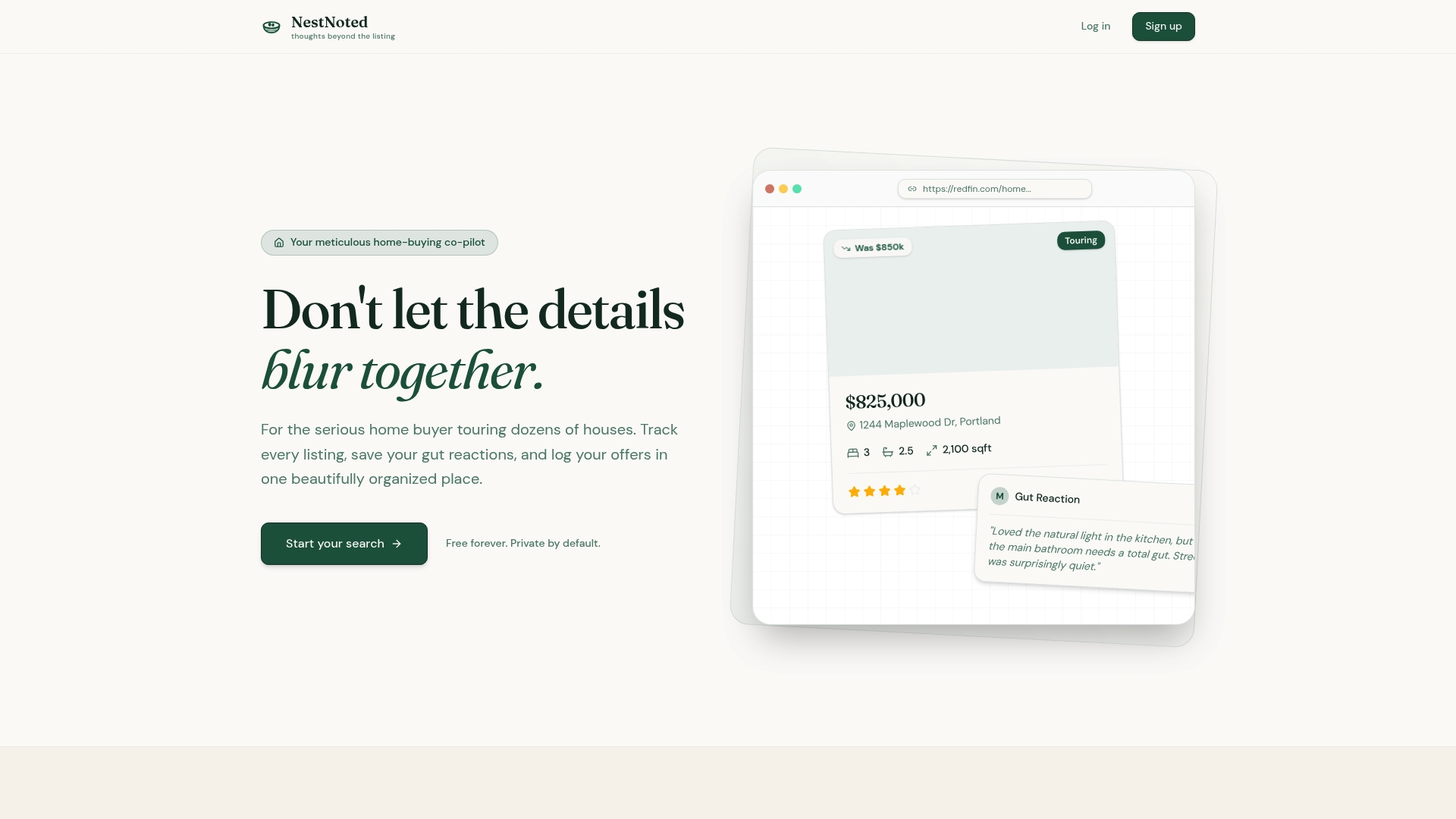
From there, users can set price and status alerts, build side-by-side comparisons across their shortlist, and log offer history with dates and terms. Notes and data remain private unless explicitly shared with others.
- Private notes and ratings, visible only to the user until shared
- Auto-populated fields from a pasted Zillow listing URL
- Price-drop and status alerts, plus comparison views and offer logs
Start your first import at NestNoted and see your listing turn into an organized, private record in a couple of minutes.
Where to check the rules and dig deeper
- Export home search data for batch import steps
- Rental listing syndication for how MLS feeds reach Zillow
FAQ
Can I legally import a Zillow listing into a private tool?
Importing a public Zillow listing for your own private notes is different from republishing it. The Zillow Listing Access Standards govern how listings should be marketed and distributed, not whether a buyer can save notes for personal use.
Why are photos or details missing after I import a listing?
Missing photos or fields usually come from an invalid URL, dynamic page content that didn't fully load, or hotlinking protections blocking the image transfer. Reloading the source URL and re-running the import, or manually uploading photos, resolves most of these cases.
Can I share my imported listing notes with my agent?
Yes, NestNoted keeps notes private by default, and you choose when to share a specific entry with your agent or a co-buyer. Nothing is visible outside your workspace until you send that invitation.
What is the difference between a coming-soon and office-exclusive listing?
A coming-soon listing must be entered into the MLS within one business day once it's marketed that way, while an office-exclusive listing can only be shared within a brokerage or in direct one-to-one communication under the Zillow Listing Access Standards. That distinction affects what you should forward or post publicly.
How do I keep an imported listing up to date?
Set alerts for price changes, status updates, and new photos so your workspace reflects what's currently on Zillow rather than what it looked like at import time. Real-time alerts work well for a short list of top contenders, while a daily digest suits a broader watchlist.